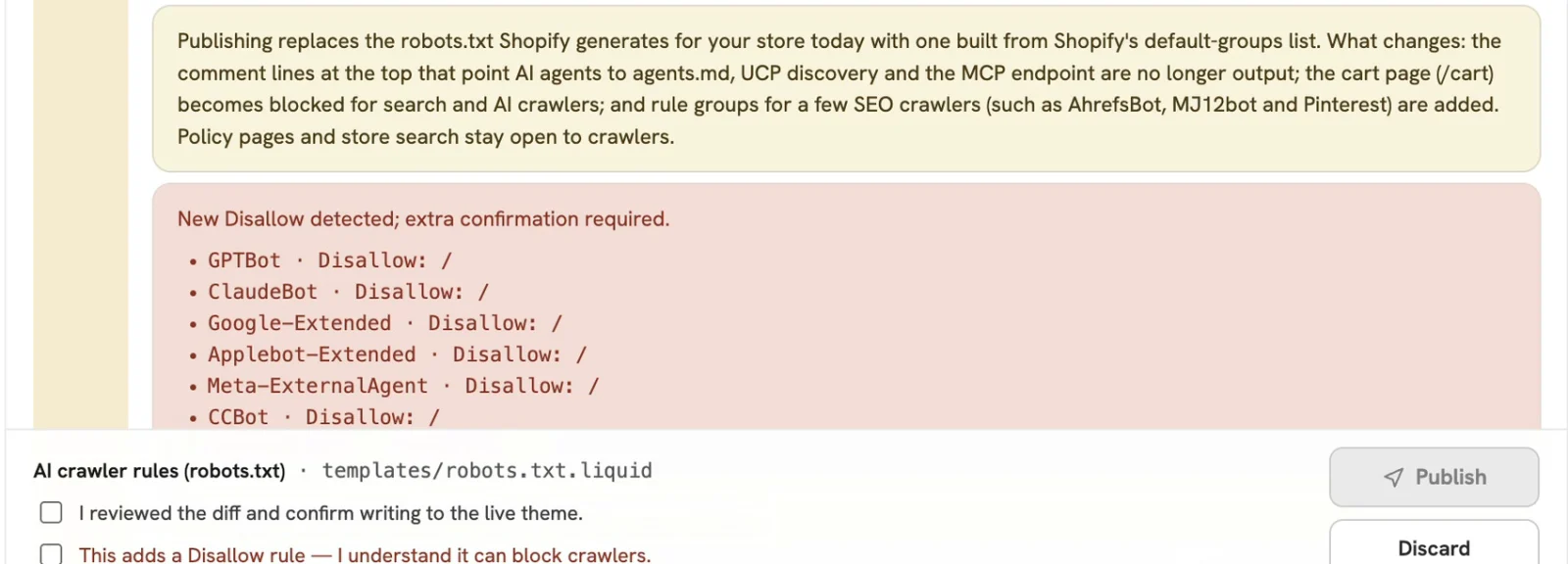
The short answer: block GPTBot only if you don't want OpenAI to use your store's pages for training. It won't take you out of ChatGPT search, which finds pages with a different crawler, OAI-SearchBot, and OpenAI treats the two as separate settings.
So the decision is about training, and on Shopify it comes down to one rule in your theme's robots.txt.liquid. The trouble usually starts next to it: a copied snippet that blocks OAI-SearchBot along with GPTBot, or the assumption that robots.txt also controls what Shopify sends to ChatGPT. Below: what each OpenAI crawler does, the three switches that decide how a Shopify store reaches AI assistants, the case for and against blocking GPTBot, and how to add the rule without touching anything else.
GPTBot vs OAI-SearchBot
OpenAI's crawler documentation (read on 27 October 2026) lists the user agents it runs and what each one is for. Three matter to a store:
| User agent | What OpenAI uses it for | What a robots.txt block does |
|---|---|---|
| OAI-SearchBot | Finding sites to show in ChatGPT search | Your pages stop appearing in ChatGPT search answers. OpenAI says they can still show up as navigational links |
| GPTBot | Collecting content that may be used to train OpenAI's foundation models | Tells OpenAI your content shouldn't be used for that training |
| ChatGPT-User | Visiting a page when a ChatGPT user's question calls for it | Possibly nothing. A person starts these visits, so OpenAI says robots.txt rules may not apply. It also says this agent doesn't decide what appears in search |
A fourth, OAI-AdsBot, only visits pages that have been submitted as ChatGPT ads.
OpenAI is direct about the first two: "Each setting is independent of the others." Allowing OAI-SearchBot while disallowing GPTBot is the example OpenAI gives. If you allow both, OpenAI may crawl a page once and use the result for both purposes, to avoid fetching it twice.
Two more details from the same page. ChatGPT search can take about a day to reflect a robots.txt change. And the page doesn't say what happens to content GPTBot collected before you added a block, so don't assume the rule reaches backwards.
The usual way this goes wrong is a "block AI bots" snippet that puts OAI-SearchBot and GPTBot in the same group. Consecutive User-agent: lines share the rules below them, so one Disallow: / blocks both, and a store that meant to opt out of training drops out of ChatGPT search as well. How to check if your store blocks AI crawlers shows how to spot a shared group.
Three different switches
robots.txt is one of two places that decide how a Shopify store reaches AI assistants. The other is your Shopify admin, and the two don't overlap.
| Switch | Where you set it | What it controls | Default |
|---|---|---|---|
| Agentic storefronts | Admin: Sales channels > Agentic | Whether Shopify sends your product data through Shopify Catalog to AI channels such as ChatGPT and Microsoft Copilot | On for eligible stores |
| Search crawlers, such as OAI-SearchBot | Theme: robots.txt.liquid |
Whether an assistant can fetch your pages from the open web and cite them in answers | Allowed |
| Training crawlers, such as GPTBot | Theme: robots.txt.liquid |
Whether your pages may be used to train models | Allowed |
Other AI companies split their crawlers the same way. The crawler check lists them.
Agentic storefronts is Shopify's own feature, and it doesn't go through robots.txt at all. It's active by default for eligible stores, under a setting called Allow Shopify to manage for me (Shopify's overview, read on 27 October 2026). To take ChatGPT out, turn that setting off, open ChatGPT and turn off Shopify Catalog access (Shopify's steps). Shopify says the data can take up to 7 days to stop flowing. And if you turn Allow Shopify to manage for me back on later, every agentic setting switches back on, direct checkout included (managing agentic storefronts).
Search crawlers decide whether an assistant can read your pages and link to them. For almost every store this is the switch to leave open: block OAI-SearchBot and your pages stop appearing in ChatGPT search answers.
Training crawlers are where the GPTBot question sits. Blocking GPTBot doesn't change the other two switches.
Shopify draws the same line. Its help center says blocking AI crawlers in robots.txt only affects discovery on the open web, and doesn't stop Shopify Catalog from sending product data to the agentic storefronts you've turned on. It works the other way too: with Catalog access off, Shopify says your products can still be found through web crawling and indexing.
So each goal has its own switch:
- Opt out of training and stay everywhere else: block GPTBot. Leave OAI-SearchBot and agentic storefronts alone.
- Stop Shopify sending product data to ChatGPT, but stay in ChatGPT search: turn off ChatGPT's Catalog access. Leave robots.txt alone.
- Keep a product out of AI channels completely: Shopify's answer is to set the product to Unlisted, which also hides it from sitemaps, search engines such as Google, and your store's own search.
The steps below only touch robots.txt. The agentic storefronts settings stay where they are.
Should you block GPTBot?
It comes down to whether you mind OpenAI training on your pages. A few points help settle it.
Reasons to block it
- You don't want the product descriptions, guides and blog posts you wrote used to train OpenAI's models. robots.txt is where OpenAI asks site owners to say so.
- You've already opted out of other companies' training crawlers and want one policy across all of them.
Reasons to leave it
- A custom template is yours to maintain. On Shopify, robots.txt changes go through a
robots.txt.liquidtemplate, and adding one replaces the file Shopify generates. Shopify's documentation (read on 27 October 2026) notes that a template's output doesn't always match the generated file exactly. If your theme doesn't have one yet, blocking GPTBot is the change that makes you the owner of that file.
Not a reason either way
- Showing up in ChatGPT search. GPTBot doesn't decide whether ChatGPT search can show your store. OAI-SearchBot does.
- Server load. Crawl traffic is a reason some self-hosted sites block bots. On Shopify, Shopify says it handles bot management at the network layer and you don't need to do anything.
- Keeping product data away from ChatGPT. robots.txt only covers the open web. What Shopify sends through Catalog is controlled in the admin, as above.
One limit applies whatever you choose. Shopify notes that robots.txt rules are advisory, and not every crawler is guaranteed to follow them. OpenAI's page describes a GPTBot block as a statement that your content shouldn't be used for training.
The short version: if you'd rather OpenAI didn't train on your pages, block GPTBot. If you don't mind, leaving Shopify's default in place is the low-maintenance choice. Either way, leave OAI-SearchBot alone.
How to block only GPTBot on Shopify
Save a copy of your live robots.txt. Open
yourstore.com/robots.txtand save the page. Shopify recommends comparing it with the template's output before you publish.Open the theme code. Go to Online Store > Themes, then ... > Edit code on your live theme, and look in the templates folder for
robots.txt.liquid.If the template isn't there, create it. Right-click templates, choose New file and name it
robots.txt.liquid. Start with the loop overrobots.default_groupsfrom Shopify's robots.txt.liquid page, which outputs Shopify's default rules. Without it, the template replaces those rules with only what you type.If it's already there, keep everything in it. A person, an app or a theme added it for a reason. Read it first: if it already names GPTBot, you may have nothing to add.
Add a group for GPTBot after the loop:
User-agent: GPTBot
Disallow: /
Put it below the loop, not inside it, so it's a group of its own. Don't add the
User-agent: GPTBotline directly above another group's rules, or GPTBot shares them. And don't add OAI-SearchBot to this group.Save, then reload
yourstore.com/robots.txt. Compare it with your saved copy. The difference should be the GPTBot group at the end. Anything else that changed is worth a look, since the template's output doesn't always match the generated file.
To opt out of other training crawlers at the same time, give each one its own group the same way.
The template belongs to the theme. If you publish a different theme later, copy robots.txt.liquid across, or the new theme serves Shopify's generated file without the GPTBot rule.
Check that OAI-SearchBot is still allowed
Once the file is live, read it one more time:
- Search the page for
GPTBotand read the whole group. It should name GPTBot alone, followed byDisallow: /. - Search for
OAI-SearchBot. On most stores it isn't named at all, which means it follows theUser-agent: *group. If it is named, make sure its group doesn't containDisallow: /. - Check that the
User-agent: *group doesn't containDisallow: /. That line blocks every crawler without a group of its own, OAI-SearchBot included.
A store can also be blocked in ways robots.txt doesn't show, such as private mode or noindex tags. The crawler check covers those.
Quick answers
Does blocking GPTBot remove my store from ChatGPT?
No. ChatGPT search finds pages with OAI-SearchBot, and OpenAI treats the two crawlers as separate settings. Shopify's ChatGPT channel doesn't depend on crawling either: it gets product data through Shopify Catalog, which robots.txt doesn't affect.
Does Shopify block GPTBot by default?
No. The robots.txt Shopify generates has two groups, User-agent: * and adsbot-google, and doesn't name GPTBot, so GPTBot follows the same rules as any other crawler. That's how the file read on kith.com, brooklinen.com and tentree.com on 27 October 2026, three stores whose files were identical apart from the store ID. The file also opens with comments that point agents to the store's /agents.md (what Shopify puts in that file).
If I turn off agentic storefronts, am I out of ChatGPT search?
Not necessarily. Shopify says that with Catalog access off, your products can still be discovered through web crawling and indexing. Whether ChatGPT search can show your pages depends on OAI-SearchBot in robots.txt.
Does blocking GPTBot remove content OpenAI already collected?
OpenAI's crawler page doesn't say. It describes a GPTBot block as telling OpenAI that your content shouldn't be used to train its models, and doesn't address pages crawled before the block.
Setting the training rule without editing theme code
Discoverly for Shopify, an AI visibility app, keeps the two kinds of crawlers apart. Bots that bring shoppers, such as OAI-SearchBot for ChatGPT search, stay open. Bots that only train models, such as GPTBot and Google-Extended, get a switch of their own, and that switch is free.
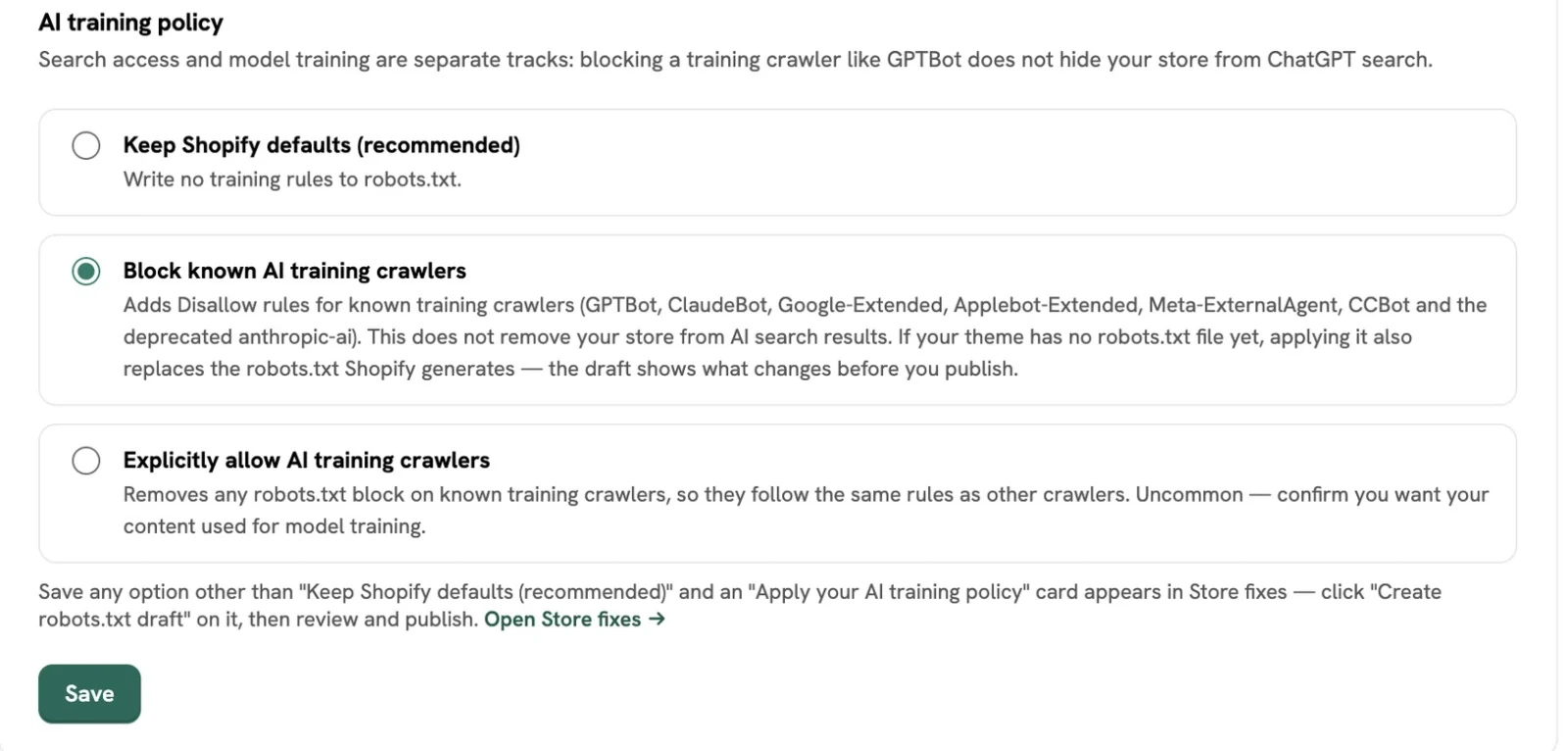
robots.txt changes arrive as drafts. You read each one line by line against your live file, nothing goes live until you press publish, and the original is saved, so the change rolls back in one click. The AI visibility score and audit are free too.